
Game Booster VIP Lag Fix & GFX
TOLANTools
4.3256.00 Reviews
- Version
- 242
- Installs
- 500.00K
- Age Rating
- Everyone
Screenshots
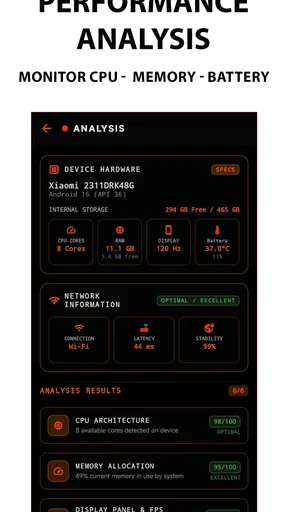
Our Review of Game Booster VIP Lag Fix & GFX
 Analysis by Appyee
Before I install a game booster, I ask one practical question: is the problem actually the phone’s workload, or is it the connection, the game, or the device reaching its limits? A tool can help with some kinds of slowdown, but it cannot turn weak Wi-Fi into a better signal or make every demanding game run smoothly on older hardware. That distinction matters with Game Booster VIP Lag Fix & GFX, because its appeal is hands-on tuning rather than a promise that every source of lag can be fixed.
I’d consider it when a game stutters while other apps are open, or when the game’s own graphics controls don’t offer enough room to find a comfortable balance. If gameplay is smooth until an online match becomes unstable, I’d investigate the network first instead. Knowing what kind of problem you have makes it easier to judge whether a booster is worth adding to your routine.
Start with the problem you want to solve
There are a few different experiences people call “lag”: delayed actions, uneven animation, long loading, and sudden drops in responsiveness. They don’t all have the same cause. A graphics adjustment may make rendering less demanding, while closing background activity may free resources, but neither should be treated as a cure for a distant server or poor reception.
That is why I’d test one change at a time. Pick a familiar game, play a short stretch under ordinary conditions, then try the same section after using the booster. If you alter several settings at once, it becomes difficult to tell which change helped and which merely made the picture look worse. This simple comparison is more useful than relying on a general feeling that the phone “seems faster.”
The Secret Sauce Behind the Boost
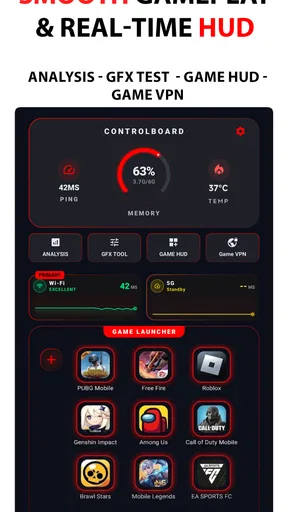
First things first, let's talk about what Game Booster VIP Lag Fix & GFX actually does. It’s like a personal trainer for your device, optimizing performance so you can game without interruptions. The app works by enhancing your device’s capabilities, prioritizing game resources, and managing background apps that steal precious processing power.
Getting Started
Installing the app is a breeze. Just a quick download from the Play Store or App Store, and you’re ready to roll. Once installed, you’ll be greeted by a straightforward interface that’s designed for users of all tech levels. No need to be a tech wizard to navigate through its options. The app features a simple dashboard where you can select the games you want to boost.
In practical terms, I’d begin with just one game rather than changing settings across everything I play. That gives you a useful baseline and keeps a bad configuration from becoming a mystery across several titles. It also makes it easier to decide whether the extra step of launching a game through a booster fits your habits or feels like needless setup.
The app is a paid Android tools app from TOLAN. Its price is $0.49, and it is marked for Everyone. The listed minimum operating-system requirement is Android 7.0, which is worth checking before you plan to rely on it. Its current version is 242; if you already use an older release, I’d take a moment to review the available settings again after updating rather than assuming your previous routine still behaves exactly as before.
Customization at Your Fingertips
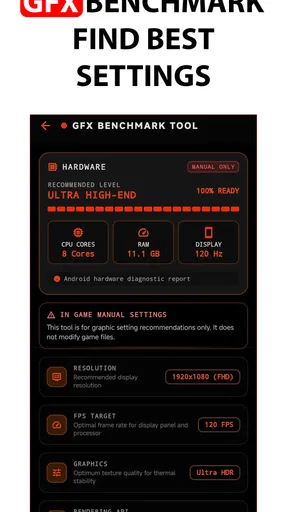
One of the coolest features is the customization. You can tweak everything to suit your needs. Want higher resolution for that RPG with stunning visuals? You got it. Need faster response times for your favorite shooter? It’s a tap away. The GFX tool allows you to adjust graphics settings beyond what the game's native options provide. This means you can fine-tune resolution, shadows, and more to get the perfect balance between performance and visuals.
For a useful first experiment, I’d favor a modest graphics change over chasing the most dramatic-looking preset. Lower visual detail can make a game feel less polished, and a sharper image may be worth keeping if the original problem is minor. After each adjustment, check both how the game looks and how it responds; a setting that improves one at the expense of the other may not be a real upgrade for you.
There is also a trade-off in using graphics controls beyond a game’s own menu: the game’s intended presets are usually the simplest reference point if something looks wrong. I’d note the original settings before changing them, then revert if text, effects, or the overall image becomes distracting. That small bit of caution saves time and makes experimentation reversible.
Smooth Sailing with Lag Fix
Lag can be a real buzzkill, but with the app’s lag fix feature, you’ll experience smoother gameplay. It works by clearing RAM and closing unnecessary background processes, ensuring your game gets all the attention it deserves. You’ll notice the difference especially in resource-heavy games where every frame counts.
A sensible everyday use is to close a video stream, browser session, or other apps you no longer need before starting a long play session, then compare how the game behaves. I wouldn’t close something important just to make the booster’s process list look cleaner; unsaved work or a call you’re expecting matters more than a small performance experiment. The goal is to remove avoidable competition, not to treat every background task as harmful.
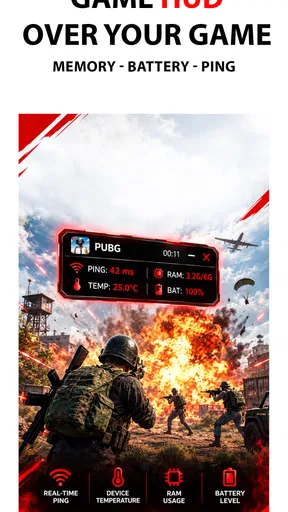
If the phone feels warm during play, I’d use the temperature and CPU information mentioned for the app as a prompt to pause and reassess, not as a guarantee that extended play is safe. Heat can be a sign that the device is working hard. Lowering visual demands or taking a break is more sensible than repeatedly pushing a hot phone because an alert has not appeared.
Where a booster fits among the alternatives
The usual alternatives are worth considering before making a booster part of your routine. A game’s own graphics menu is the simplest place to start: it keeps the adjustment tied to that title and is easy to undo. The phone’s built-in gaming tools, where available, may be more convenient because they are already part of the device experience. A separate booster is more appealing when you want a dedicated place to select games and experiment with extra graphics controls.
Those options serve different needs rather than forming a universal ranking. If you only play one title and its settings already solve the problem, I’d stay with the in-game controls. If you want to keep several games organized around a repeatable launch routine, a dedicated tool can be more useful. And if the trouble is mainly online delay, checking Wi-Fi or mobile reception is a better first move than changing graphics.
One non-obvious trade-off is consistency. A change that feels good in a short, quiet session may not feel as good during a longer match, when heat, battery use, and other activity become more noticeable. I’d compare like with like: the same game area, similar connection, and roughly the same session length. You don’t need laboratory conditions; you just need to avoid crediting the app for a better network moment or blaming it for a busier one.
Who will get the most from it
I can see this app suiting someone who enjoys trying graphics settings, plays demanding games on a phone that has limited spare resources, and is comfortable checking results rather than expecting a one-tap miracle. It may also suit a player who regularly closes background apps before gaming and wants that cleanup to be part of a deliberate launch routine.
It is less compelling for someone whose phone already runs their games well, who prefers not to adjust settings, or who mainly experiences connection-related delay. It is also not the right choice if you expect an app to overcome hardware limits in every title. In those cases, leaving the game at its own recommended settings—or choosing a less demanding game—is likely to be less frustrating.
For a realistic example, imagine getting home and wanting a quick match before dinner. If a game has been stuttering while a browser and media app remain open, I’d close what I don’t need, select that game in the booster, and try a conservative graphics adjustment. If the match still feels delayed but the visuals remain steady, I’d stop changing graphics and check the connection instead. That workflow avoids spending the whole evening tuning the wrong thing.
Cost, adoption, and what to expect
There is a small but real switching cost: you need to install another app, learn its controls, and remember to use it when launching the games you want to tune. For someone who only plays now and then, that extra step may outweigh the benefit. For a regular player who likes experimenting, the low asking price may feel reasonable, but I’d still decide based on whether the controls solve a problem I actually have.
Game Booster VIP Lag Fix & GFX has an average rating of 4.3 from around 24,000 ratings, alongside 256 written reviews, and has passed 500,000 installs. Those figures suggest that many people have tried it, but they can’t tell me how it will behave on your particular phone or with your particular game. I’d treat my own before-and-after test as more relevant than popularity alone.
The central question is whether it improves your routine, not whether every feature sounds useful. Try one game, make changes gradually, and keep the settings that make play more comfortable. If the result is no better, removing the extra step is a perfectly sensible outcome.
Why It’s a Game-Changer
What sets this app apart is its ability to enhance any game on your device. Whether you’re battling in a MOBA, racing in high-octane simulations, or exploring vast open worlds, Game Booster VIP Lag Fix & GFX delivers consistent performance improvements. It’s like having a high-end gaming rig in your pocket.
That broad appeal is strongest when you treat it as a tuning aid, not a hardware upgrade. Different games put different demands on a phone, so the best setting for one may be a poor fit for another. I’d keep expectations grounded and judge each title on its own: smoother-feeling play is useful, but it does not mean the device has gained new physical capability.
It also helps to be clear about what you value most. Someone focused on competitive responsiveness may accept a less detailed image, while a player exploring a visually rich world may prefer to preserve effects and tolerate occasional slowdown. There is no single ideal configuration for both. The useful part is having room to make that choice, provided the changes remain easy to reverse.
Plus, the app doesn’t just stop at boosting; it also keeps a keen eye on your device's health. It monitors temperature and CPU usage, sending you alerts if things get too hot, literally. This means you can game harder and longer without worrying about frying your device.
I’d read those indicators as helpful context rather than permission to ignore the phone’s behavior. If the handset feels unusually hot, the battery is draining faster than you expect, or performance worsens during a long session, pausing is still the prudent response. Monitoring can help you notice strain; it cannot remove the limits that cause it.
A measured recommendation
After spending some time with Game Booster VIP Lag Fix & GFX, it’s clear that this app is a must-have for any mobile gamer looking to elevate their experience. It’s user-friendly, highly customizable, and most importantly, effective. The performance gains are noticeable, and the added control over graphics settings is a huge plus.
My recommendation is narrower: I’d try it if you want hands-on graphics tuning and suspect background activity is contributing to uneven play. I wouldn’t call it essential for every mobile gamer, especially if built-in settings already work well or your main issue is network quality. The app’s appeal is the combination of game selection, adjustment, and performance checks; whether that combination is worth keeping depends on how often you’ll use it.
If you’re tired of lag ruining your gaming sessions, give this app a go. It’s a small investment for a huge upgrade in your gaming quality. So, next time you’re gearing up for a gaming marathon, make sure Game Booster is your wingman. Trust me, you won’t regret it.
Verdict
Strengths of Game Booster VIP Lag Fix & GFX
- Enhanced gaming performance and speed.
- Customizable graphics settings.
- Supports a wide range of games.
- User-friendly interface design.
- Improves device battery efficiency.
Limitations of Game Booster VIP Lag Fix & GFX
- May not work on all devices.
- Some features require in-app purchases.
- Occasional ads can be intrusive.
- Limited customer support options.
- May conflict with system updates.
Similar Picks in This Category
View All
Google LLC4.0

Gboard - the Google Keyboard
Google LLC4.5

Google Play services
Google LLC4.3

Google Play Store
Google LLC4.9

Files by Google
Google LLC4.5

SHAREit: Transfer, Share Files
Smart Media4U Technology Pte.Ltd.4.3
Frequently Asked Questions
What is Game Booster VIP Lag Fix & GFX and how does it work?
Game Booster VIP Lag Fix & GFX is an optimization app designed to enhance gaming performance on Android devices. It works by freeing up system resources, managing background processes, and adjusting device settings to reduce lag and improve graphics quality, ensuring a smoother and more immersive gaming experience.
Is Game Booster VIP Lag Fix & GFX compatible with all Android games?
Yes, Game Booster VIP is designed to work with most Android games. It optimizes system performance across a wide range of games by adjusting settings specific to each title. However, results may vary depending on the device and the specific game being played.
Does using Game Booster VIP Lag Fix & GFX affect battery life?
While Game Booster VIP enhances gaming performance, it may lead to increased battery consumption due to the elevated processing power required for improved graphics and reduced lag. Users should monitor battery usage during extended gaming sessions to manage power consumption effectively.
Can Game Booster VIP Lag Fix & GFX improve graphics quality?
Yes, the app includes a GFX tool that allows users to tweak graphics settings for enhanced visuals. By adjusting resolution, FPS, and other parameters, gamers can achieve a more visually appealing experience, although this may be limited by the device's hardware capabilities.
Is Game Booster VIP Lag Fix & GFX safe to use on my device?
Game Booster VIP is generally considered safe for use on Android devices. It optimizes performance by altering system settings without requiring root access. However, users should download the app from official sources to ensure they are installing a legitimate and malware-free application.
